Plugins and Themes
In WordPress, plugins and themes are essential components that help customize and extend the functionality and appearance of a website:
- Plugins: These are add-ons that enhance your site’s features or add new functionality. Plugins can range from SEO tools and security enhancements to contact forms and e-commerce integrations.
- Themes: These control the design, layout, and visual appearance of your site. A theme determines how your site looks to visitors, including fonts, colors, page structure, and responsiveness.
Within MyKinsta, you can manage plugins and themes individually on each site’s Plugins and themes page or update multiple plugins and themes at once for multiple sites from the Sites list. Kinsta also offers automatic updates with regression checks, ensuring your plugins and themes stay up to date while minimizing security risks.
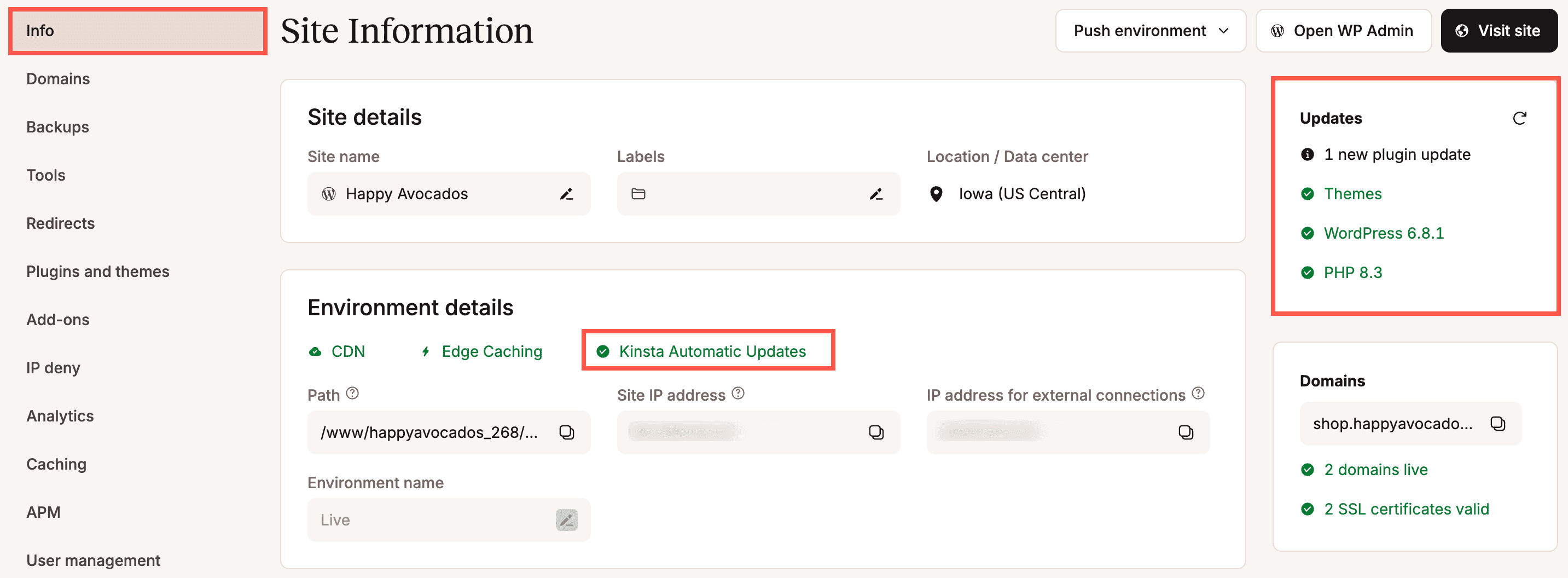
On your site’s Info page in the Updates section, you can view the number of updates available for your plugins and themes and whether any are vulnerable. The Environment details section shows if Kinsta’s automatic updates are enabled or not.
When updating a plugin or theme in MyKinsta, you can enable maintenance mode. This mode displays a temporary maintenance page while updates are applied.
Since Kinsta’s platform is optimized for performance, security, and reliability, certain plugins are restricted or may not function properly within the Kinsta environment. To see which plugins are not allowed, refer to Banned and Incompatible Plugins.
Plugin and theme vulnerabilities
Kinsta automatically installs a Vulnerability protection plugin, powered by Patchstack, on all WordPress sites hosted with Kinsta. Instead of cleaning up a site after it’s been infected, the plugin works to stop attacks before they happen. It continuously checks your WordPress core, plugins, and themes against an up-to-date vulnerability database and blocks attempts to exploit known vulnerabilities, even before the developer releases an official fix.
The plugin is installed as a must-use plugin, so it doesn’t appear in your main list of installed plugins in WordPress and can’t be deactivated or removed. You can view it in Plugins > Must-Use. To confirm it’s active, go to your site’s Info page in MyKinsta.
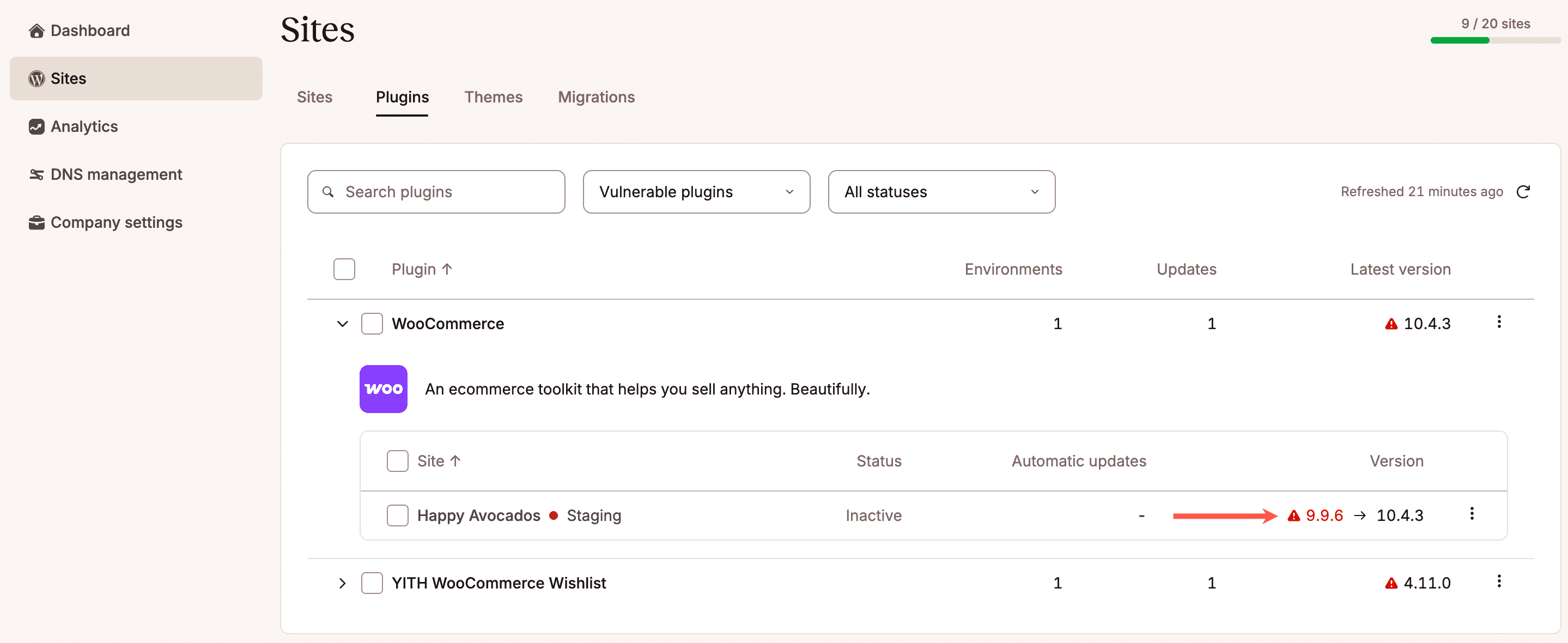
MyKinsta also scans your plugins and themes daily for known vulnerabilities. If a vulnerability is found in the installed or available version, an exclamation mark appears, and the version number is highlighted in red. To see which plugins need a security update, filter your plugins list by Vulnerable plugins. For technical details about each vulnerability, including when it was reported, see WPScan’s vulnerability database for plugins and themes.
To reduce your exposure to vulnerabilities, enable Kinsta Automatic Updates to keep your plugins and themes up to date.
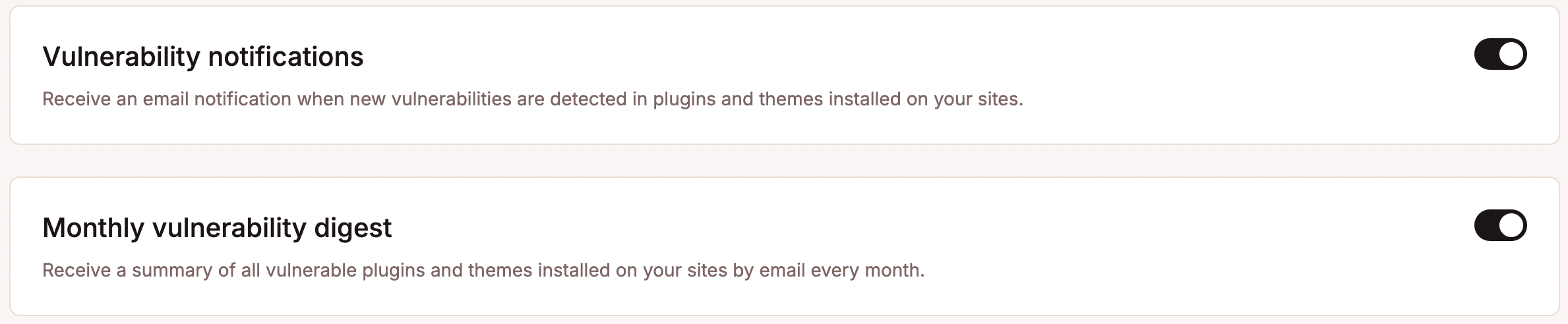
You can set up email notifications for new vulnerabilities and for a monthly summary of all vulnerable plugins and themes installed on your sites, under your username > User settings > Notifications.